
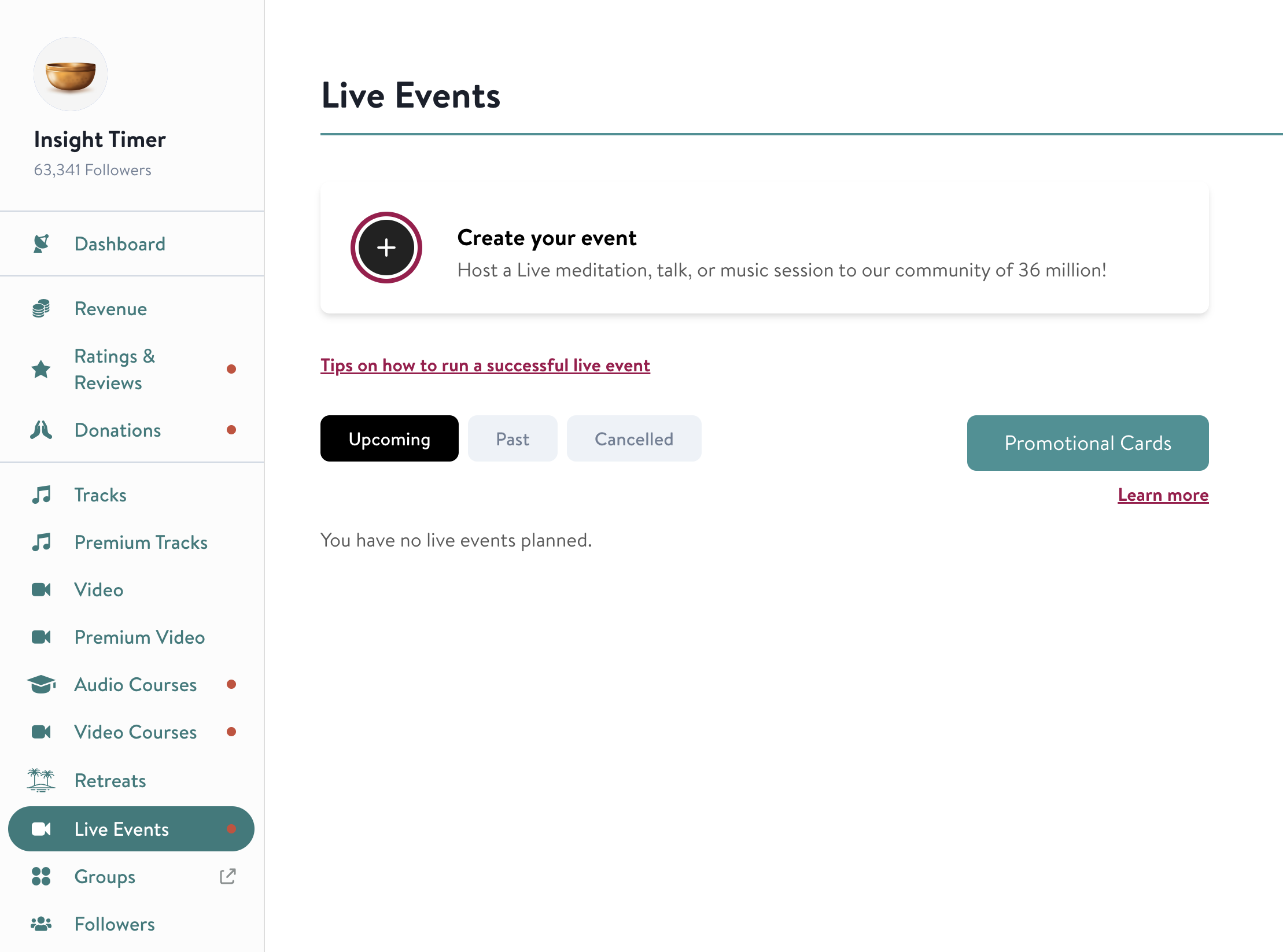
Creating a Live Event Proposal
Once your application to host live events is approved, you can create and schedule events directly from the Live Events tab in your Teacher Dashboard.
- Log in to your Teacher Dashboard using Google Chrome.
- Click Live Events in the left sidebar, then select Create Your Event.
- Fill in your event details: date, time, duration, origin, practice type, and benefits.
- Review and agree to the terms, then hit Submit.
Key scheduling rules:
- Submit live event proposals at least 24 hours in advance - the system will not allow less notice.
- We recommend submitting live event proposals at least one week in advance. This allows for increased discoverability and sign ups.
- Once your event is approved, you'll receive an email confirmation, and your event will appear on your profile, in the app's Live Events section, and at insighttimer.com/live.
- If your live event is not approved, you will receive instructions on next steps via email.
Duplicating an Event
Save time by duplicating a past event and using it as a template. Find the event in your Live Events tab, click the duplicate icon, update the date and time, remove the “[Copied]” label from the title, and submit.
Editing or Cancelling an Event
After submitting your live event, you can edit the title and description:
- Go to your Teacher Dashboard and select the Live Events tab in the left sidebar.
- Click the Enter button on the live event you want to edit.
- Click Edit Event - you'll be redirected to a new page.
- To change the title and/or description, make your changes, then hit Save Changes.
- To cancel the event, hit the Cancel Event button, then confirm by clicking Yes, cancel my live event.
- Anyone who previously RSVP'd to your event will receive a notification that it has been cancelled.
Cancellation policy: While we prefer to avoid event cancellations, we understand things come up. If you do need to cancel an event, please do so at least 24 hours before your scheduled start time.
If you do not show up to your Live Event within 10 minutes of the scheduled start time, that will be considered a “no-show.” Three no-shows within six months will result in a temporary three-month ban from hosting live events.
Running a Test Event
We highly recommend running through the full go-live experience with a test event before hosting your first live session. Use this link to create a test event. When creating the event, you must add “TEST” in both the title and description copy.
To record your test session: Add ?record_test_event=1 to the end of your event URL link. For example:
The live test URL = https://teacher-staging.insighttimer.com/live/abc123/host
The live test URL with recording = https://teacher-staging.insighttimer.com/live/abc123/host?record_test_event=1
After you end the test event, a Watch Replay button will appear on the live event in Teacher Dashboard.
Promoting Your Event
Consistent promotion makes a significant difference in attendance. Share your event link across social media, email newsletters, and anywhere else your audience gathers.
Share your event from the Teacher Dashboard:
- Go to Live Events and find the event you want to share.
- Click the arrow button next to the event.
- Choose your platform or copy the link to share anywhere.
From the mobile app:
- Navigate to your Profile in the Insight Timer app.
- Select the event and tap the share icon in the top right corner.
We recommend scheduling at least two sessions in advance at a time so you can promote them and build anticipation.