
Promotional Cards let you feature your offerings directly in the live event chat window - so attendees can discover and engage with your content without ever leaving your session.
Card Types
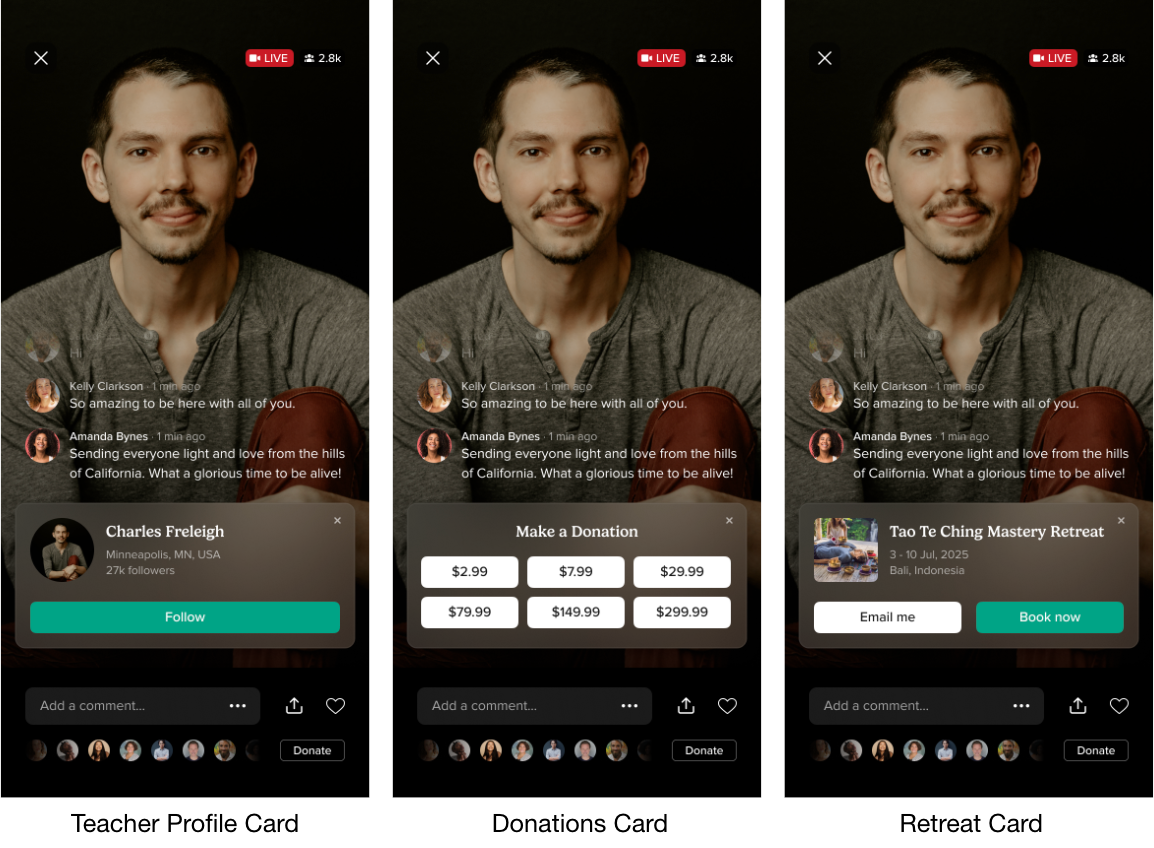
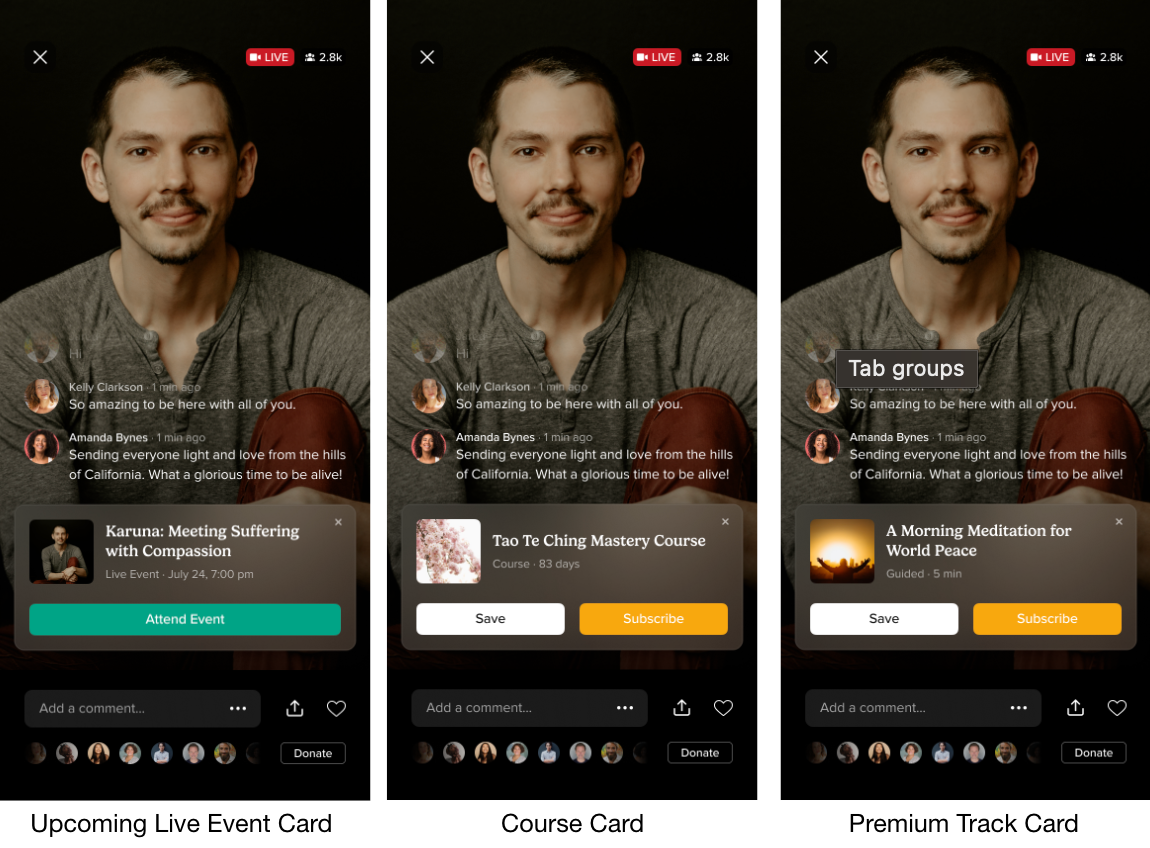
Setting Up Cards in Advance
- Log in to your Teacher Dashboard.
- Go to the Live Events tab and click the Promotional Cards button (top right).
- Click Add Promotional Card in the top right, choose a type, search for your content, and click Add.
Watch a step-by-step video guide for setting up your first card.
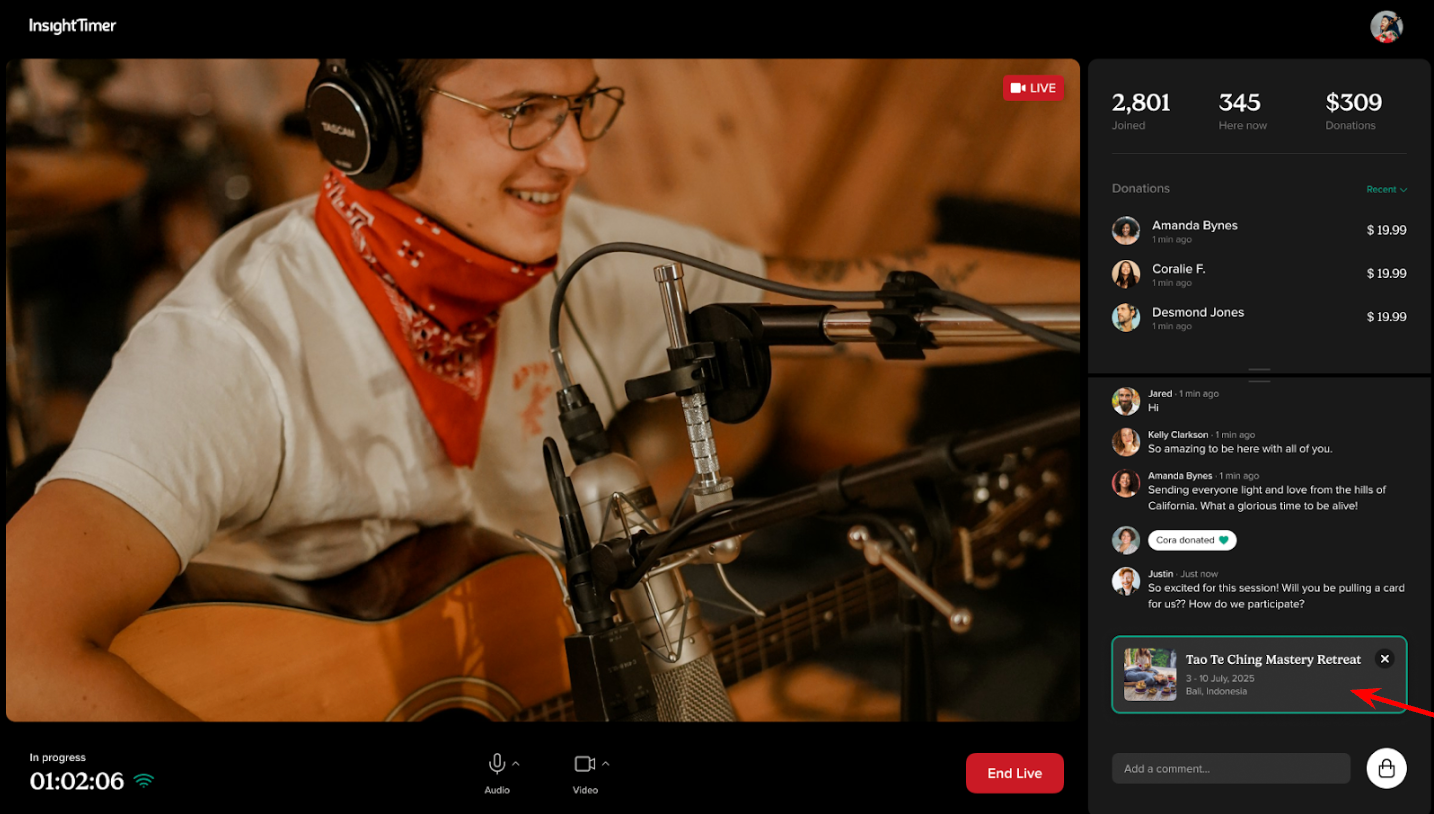
Using Cards During Your Session
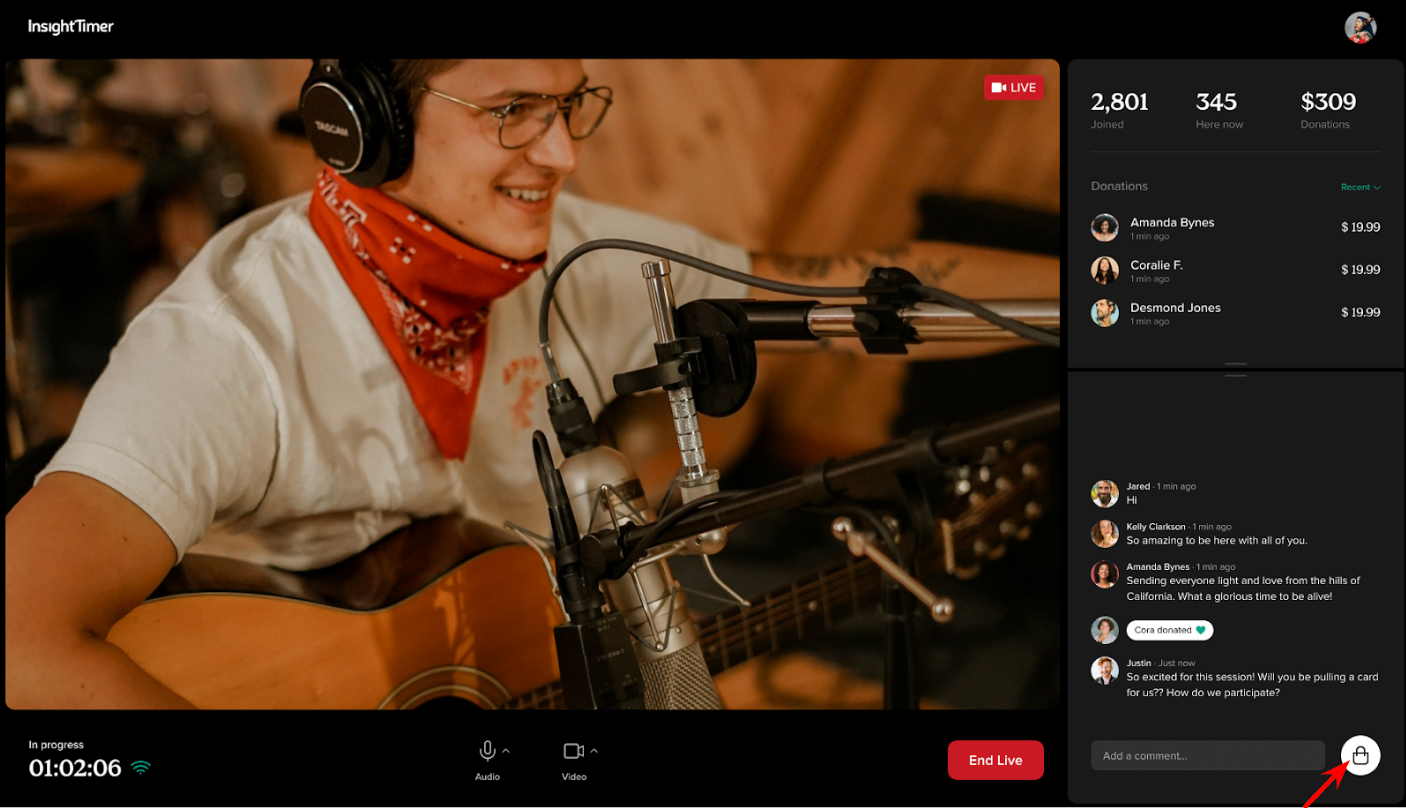
- Click the Promotional Card button (shopping bag icon) next to the chat.
- Select the card you want to share and click Post Card.
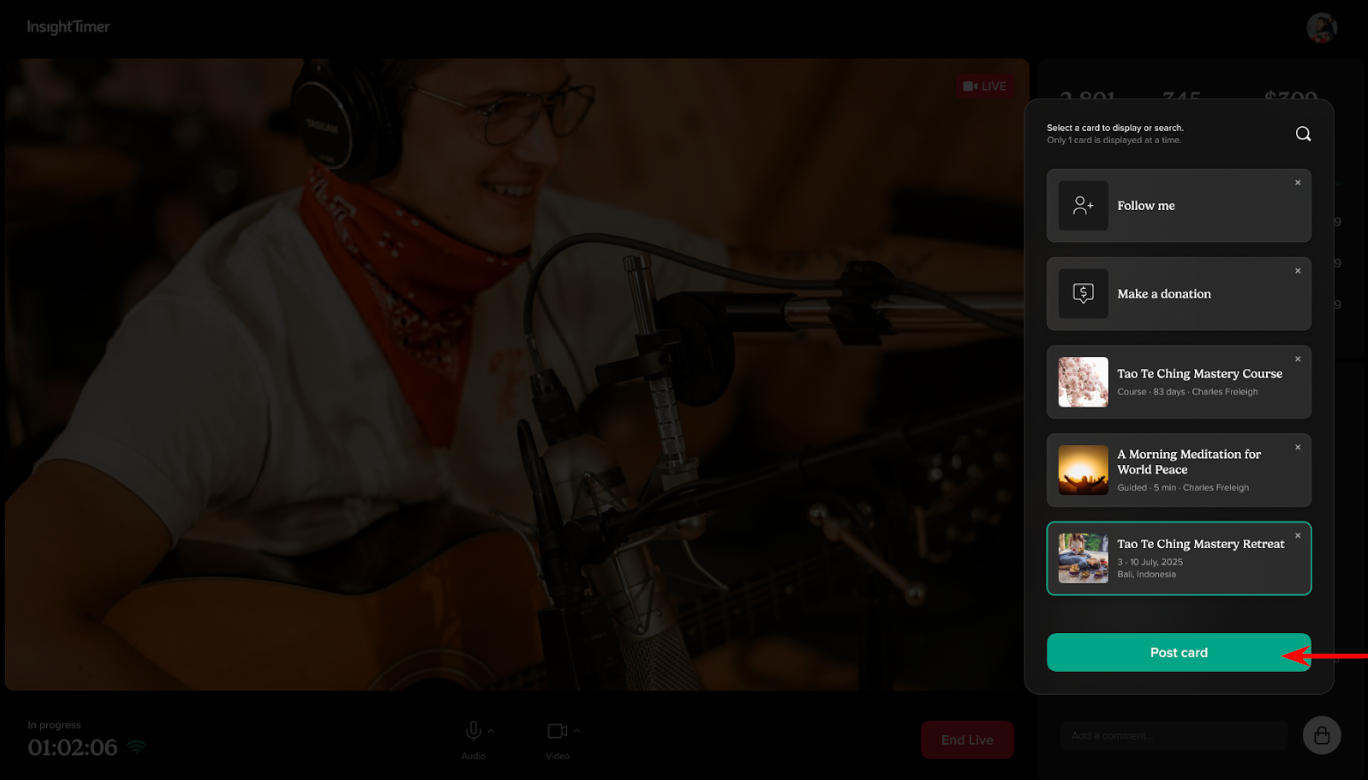
- The card appears immediately in chat for all attendees.
- Remove it by clicking the X when you're done.
Tips:
- Only one card can display at a time - selecting a new card automatically replaces the current one.
- Cards do not disappear on their own - remember to remove them manually when done.
- The Promotional Cards button is available before you officially go live - test your cards ahead of time.
Referral Earnings
For every new paid subscriber who joins Insight Timer through one of your Promotional Cards (premium tracks or courses), you'll receive a US$10 thank-you payment. This will be reflected in your monthly statement and included in your regular payout.