
Understanding the Hosting Screen
Your hosting interface is designed to let you focus on teaching.
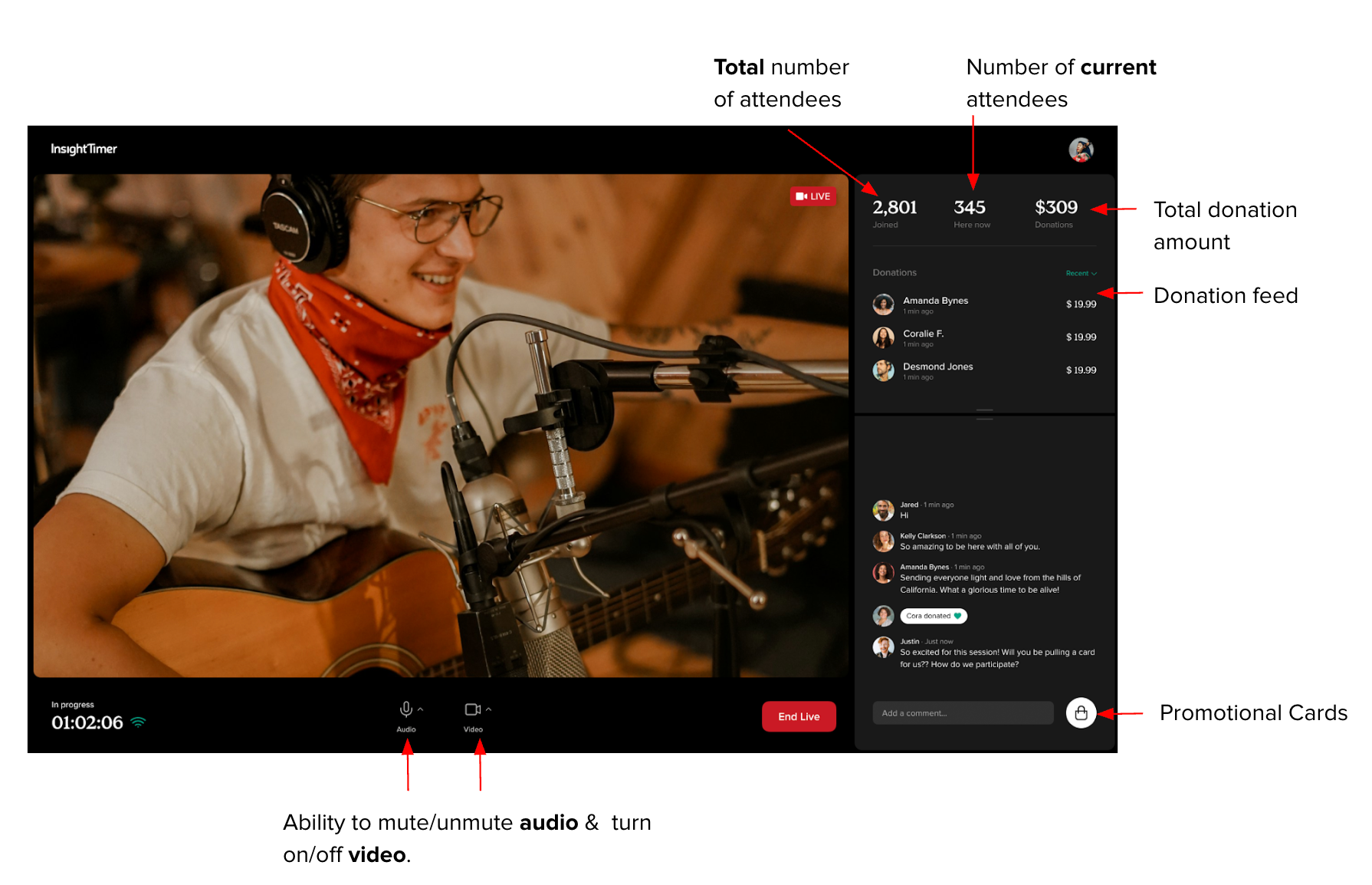
The Stats Panel (right side) shows you in real time:
- Total number of community members who have joined since the session began
- Number of members currently attending live
- Total donation amount received, with a feed you can sort by time or amount
Host controls allow you to:
- Mute/unmute your microphone
- Turn your video on/off
- Access and post Promotional Cards
Engaging Your Audience
- Welcome viewers warmly as they arrive, and acknowledge the global community joining you.
- Invite participants to share their name and location in the chat at the start.
- Respond to chat comments during natural pauses in your session.
- Create a sense of community - attendees who feel seen are more likely to return.
Asking for Donations
If you feel comfortable, we recommend mentioning donations a few times during your session at natural moments - not as a demand, but as an invitation. Help your audience understand that donations keep the session free and accessible for everyone.
When someone donates, you can acknowledge their generosity warmly.
Important: You must not suggest - in the title, description, or during the session - that attendance is dependent on donations or that donations are mandatory. All live events are offered free of charge.
Promoting Your Insight Timer Content
Use your live session as a natural opportunity to introduce your other Insight Timer offerings. Promotional Cards make this easy - you can feature your tracks, courses, retreats, or upcoming events directly in chat. See the Promotional Cards section below for setup instructions.
Community Guidelines During Live Sessions
All live events must follow Insight Timer's Guidelines for Teachers. During your session, you cannot promote external products, services, websites, books, courses, retreats, or anything outside of Insight Timer.