
Seeing your content's overall performance is easy and straightforward on Insight Timer. The Teacher Dashboard allows you to see your overall performance and individual performance metrics for tracks and courses over time via a comprehensive dashboard interface. The Dashboard provides detailed data to help you understand what's resonating most with your community members, track your growth trajectory over time, and identify strategic opportunities to improve your meditation, mindfulness, sleep, yoga, breathwork, and other content strategy across our platform.
Overall Performance
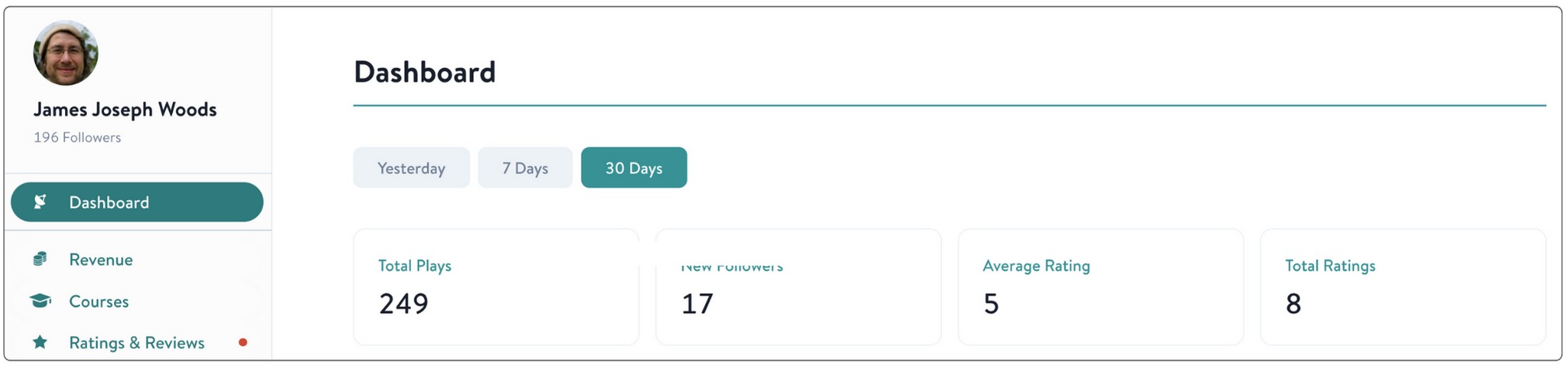
You can see the stats of your overall performance for the day before, the last seven days, or the last 30 days. To view your overall performance metrics and see how your work is doing in the community:
- Log in to the Teacher Dashboard with your teacher account details. (If you don't yet have a teacher account, here's how to set up an Insight Timer teacher profile.)
- Select Dashboard located on the left panel, under your profile photo.
The Dashboard displays four key metrics about your overall performance across all your content:
- Total Plays — the total number of times community members have clicked 'Play' on your entire library of content across all meditation, sleep, yoga, and other practices
- New Followers — the number of new teachers following your work during the selected time period, showing the impact of your releases and community engagement
- Average Rating — your average rating score across all of your published content, reflecting community satisfaction with your teaching
- Total Ratings — the total number of individual ratings you've received across all your content from community members
Tracks
To view the detailed stats of your individual meditation, sleep, yoga, breathwork, and other audio tracks in your library:
- Log in to the Teacher Dashboard with your teacher account details.
- Select Tracks or Premium Tracks located on the left panel. This section displays comprehensive statistics for each of your audio practices.
Plays Chart
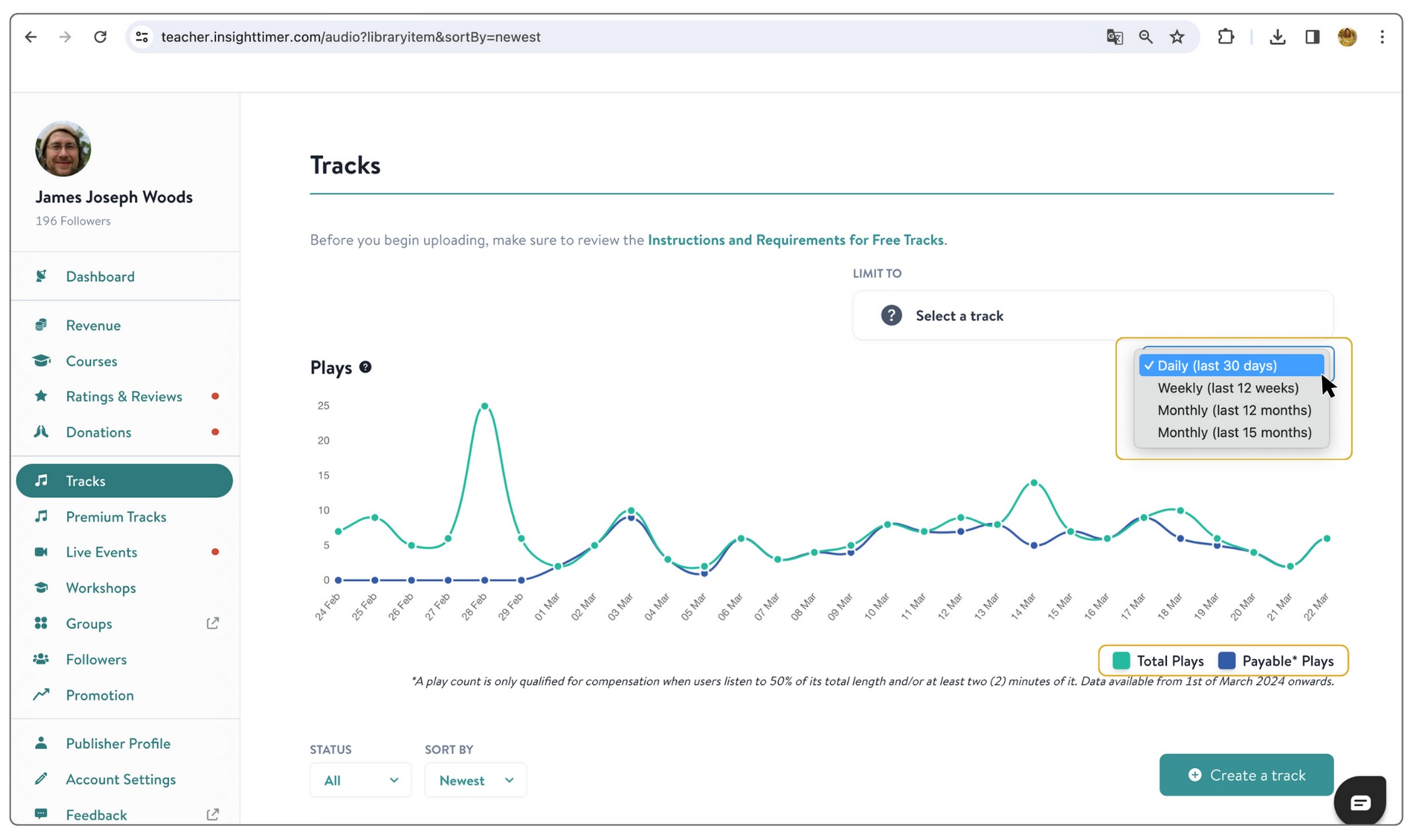
You can view both the total number of plays and the number of payable plays for your tracks. Understanding these two distinct metrics is essential for teachers seeking payment and tracking community engagement:
- Total Plays: This represents the gross number of times community members have clicked 'Play' on your content. It includes anyone who started listening, regardless of how long they actually listened before stopping or leaving the app.
- Payable Plays: These are plays eligible for payment, as reflected in your payment statement and earnings reports. A track play count qualifies for compensation only when users listen to at least two (2) minutes of it or 50% of its total length, whichever comes first. This ensures that compensated plays represent genuine, meaningful engagement with your work.
By noting the difference between Total and Payable plays, you can identify exactly where listeners aren't fully engaging with your content and make necessary improvements to increase retention and earnings. For instance, a large gap could indicate that many listeners are exiting at the beginning of your track. Consider checking your track's introduction and identifying potential factors that may affect the meditation experience, such as background or microphone noises, or extended periods of silence that might cause people to drop off early. Small improvements in these areas can significantly increase your payable play count and overall earnings potential.
Select the period
From the dropdown menu, choose the time frame for which you'd like to view your Play Count chart and performance data. You can analyze your performance data day-by-day, week-by-week, or month-by-month to identify trends and patterns in how your content performs across different time periods and seasonal variations.
Individual Tracks' Performance
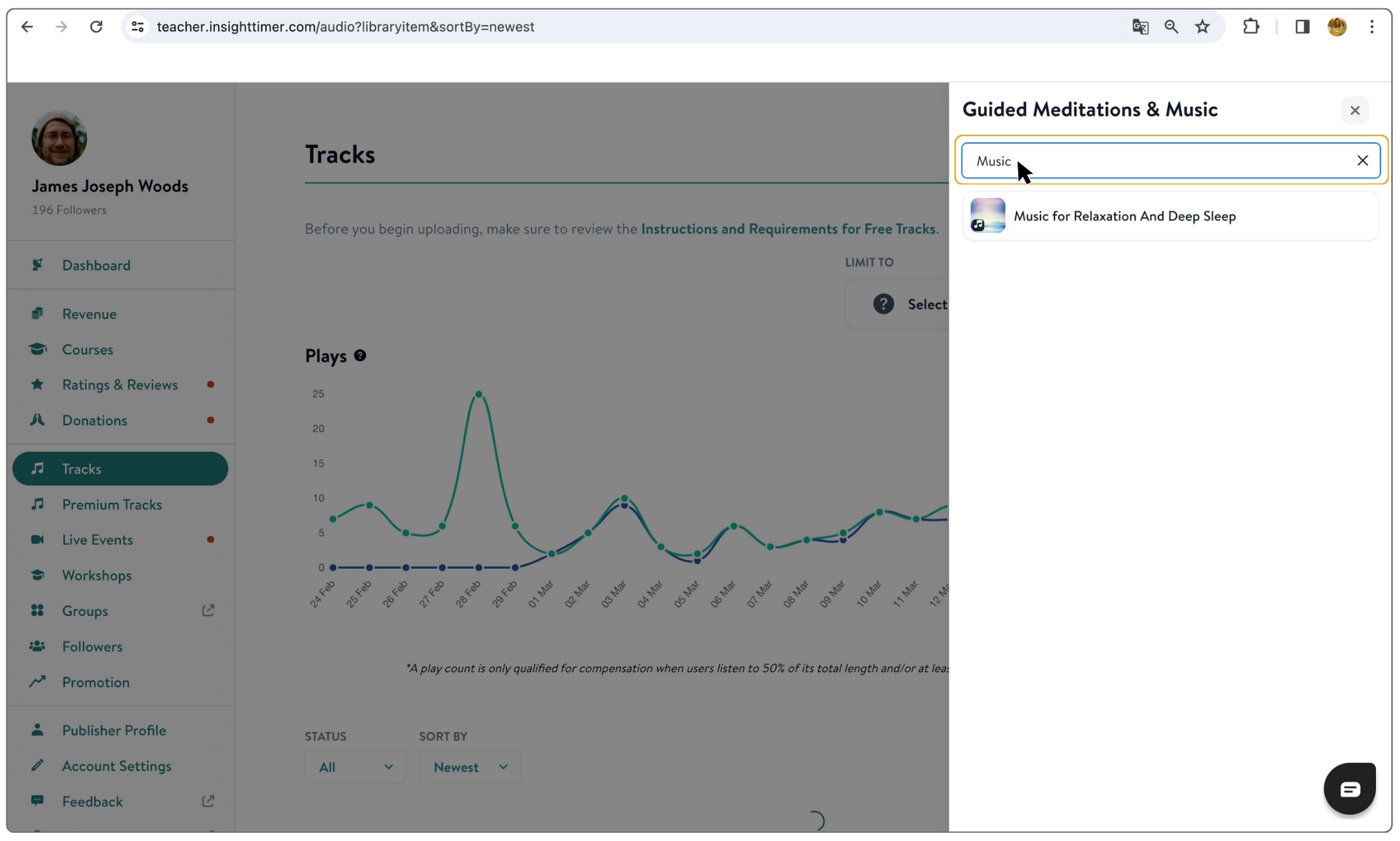
Click 'Select a Track' to view the statistics for a specific track. Utilize the search bar within the Tracks and Premium Tracks tabs to conveniently locate any specific audio in your library. This tool is especially beneficial for teachers managing an extensive library of content, as it makes finding and analyzing individual pieces quick and easy without needing to scroll through your entire catalog.
For individual tracks, the following statistics are available to help you understand performance and engagement:
- Total Plays x Payable Plays Chart (filterable by intervals: daily, weekly, monthly)
- Average Rating — the mean rating for that specific track from community feedback
- Number of Ratings — total ratings received for that particular track
Additional Sorting Options for Tracks
Sort your tracks by newest (most recently uploaded), shortest (fewest minutes), and longest (most minutes). And stay tuned — we have more sorting options coming soon to make it even easier to organize and find your content when managing a large and growing library of meditation and wellness material.

Courses
To view the stats of your courses:
- Log in to the Teacher Dashboard with your teacher account details.
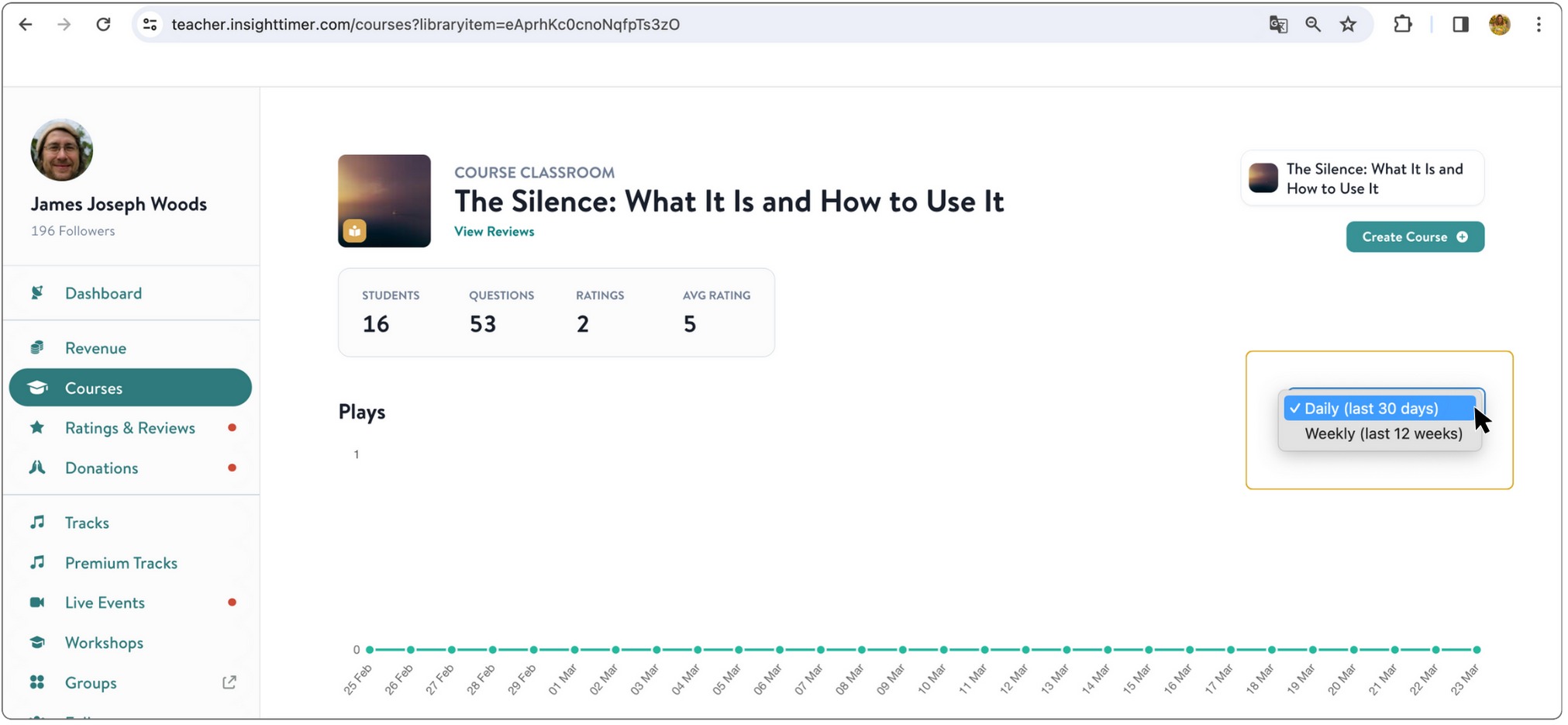
- Select Courses located on the left panel. You'll be able to see all stats for individual courses at the top of the page.
If you've been approved to publish courses, the following stats are available for each of your courses:
- Total Plays x Payable Plays Chart (filterable by intervals: daily, weekly)
- Number of Students — how many community members are actively enrolled in your course
- Number of Questions — the number of interactions and engagement items from your students
- Number of Ratings — total ratings your course has received from students
- Average Rating — the mean rating for your course
Followers
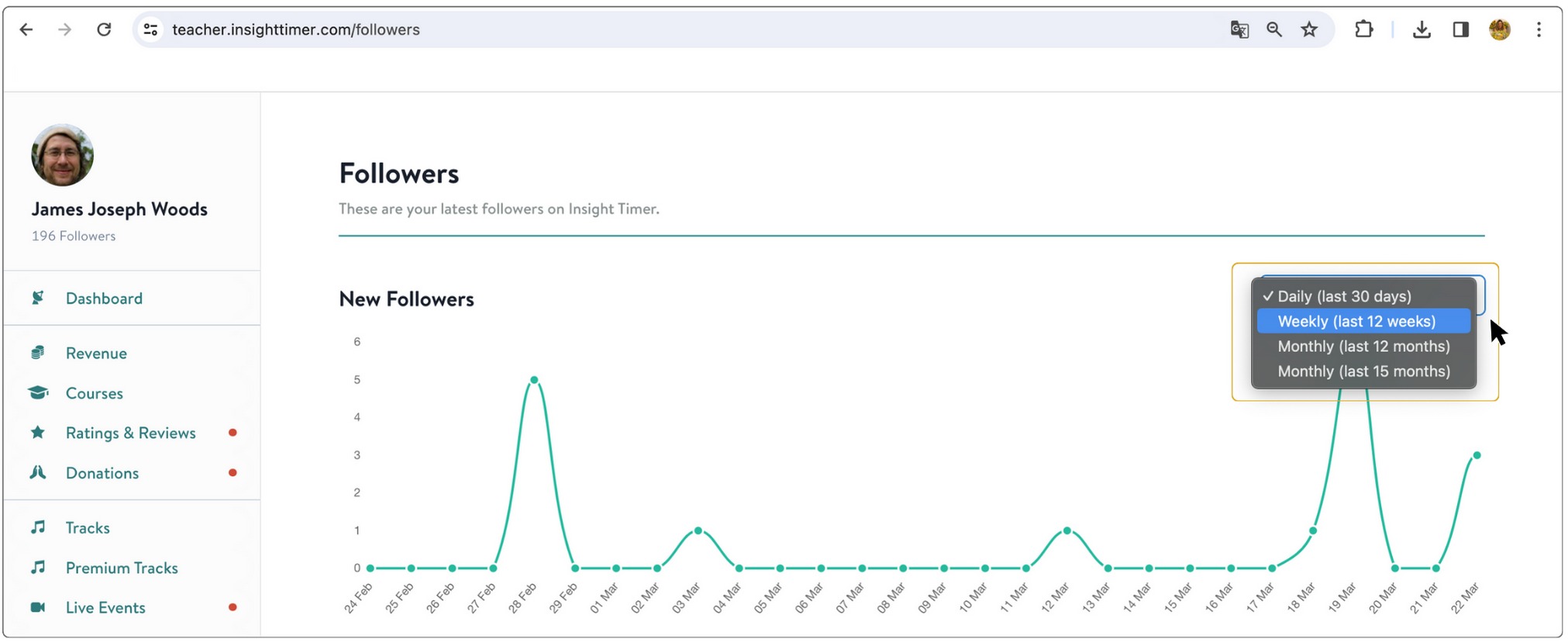
Easily track the impact of new releases and promotional efforts with the ability to select and filter the number of new followers shown over time. The results are filterable by intervals: daily, weekly, or monthly, giving you granular visibility into how your efforts drive audience growth. This helps you see directly which of your release strategies, promotional activities, and content types drive the most growth in your follower base and community reach on the platform.
- Log in to the Teacher Dashboard with your teacher account details.
- Select Followers located on the left panel.
Learn more about how to manage your Teacher account here.