
Paid live events let you charge for a live session on Insight Timer. You schedule the event, choose a price, and members buy a ticket to attend. Everything else about hosting stays the same as the live events you run today.
It's a new way to be paid directly for your live teaching, alongside what you already earn from your on-demand content.
At a glance
- Anyone who can host live events can make an event paid. No extra application.
- Pick from 10 fixed prices, from $1.99 to $499.99. You cannot change the price after publishing.
- Members purchase tickets in the Insight Timer app. You keep 60% of each ticket: Apple or Google take 30% as their app store commission, and Insight Timer keeps 10%.
- Member Plus subscribers get 30% off tickets.
- Every paid event becomes a replay that ticket holders keep access to, and others can buy.
- Earnings are paid with your usual Insight Timer payouts.
In this article
The basics | Setting your price | What you earn | Member Plus | Replays | Cancellations and refunds | Tracking sales | Getting paid
The basics
What is a paid live event?
A live event that members pay to attend. You schedule it the same way you schedule any live event, choose a price, and members buy a ticket. Hosting, streaming, chat and the dashboard all work exactly as they do now.
Who can create a paid event?
If you can host a live event on Insight Timer, you can make that event paid. There is no extra application, approval or onboarding step.
If you don't yet have access to host live events, you can apply here. Not sure whether you have access? Open the Live Events tab in your teacher dashboard, where your eligibility is shown.
Insight Timer may withdraw access to paid events for any teacher, including where an event doesn't meet our Rules & Guidelines or Teacher Terms.
How do I create a paid event?
Start the same way you would with a free live event: go to the Live Events tab of your Teacher Dashboard and select Create your event.
On the Details page, you’ll see a new section asking whether your event is free or paid. Select Paid, then set the number of tickets you want to make available and choose a ticket price from the list of options.
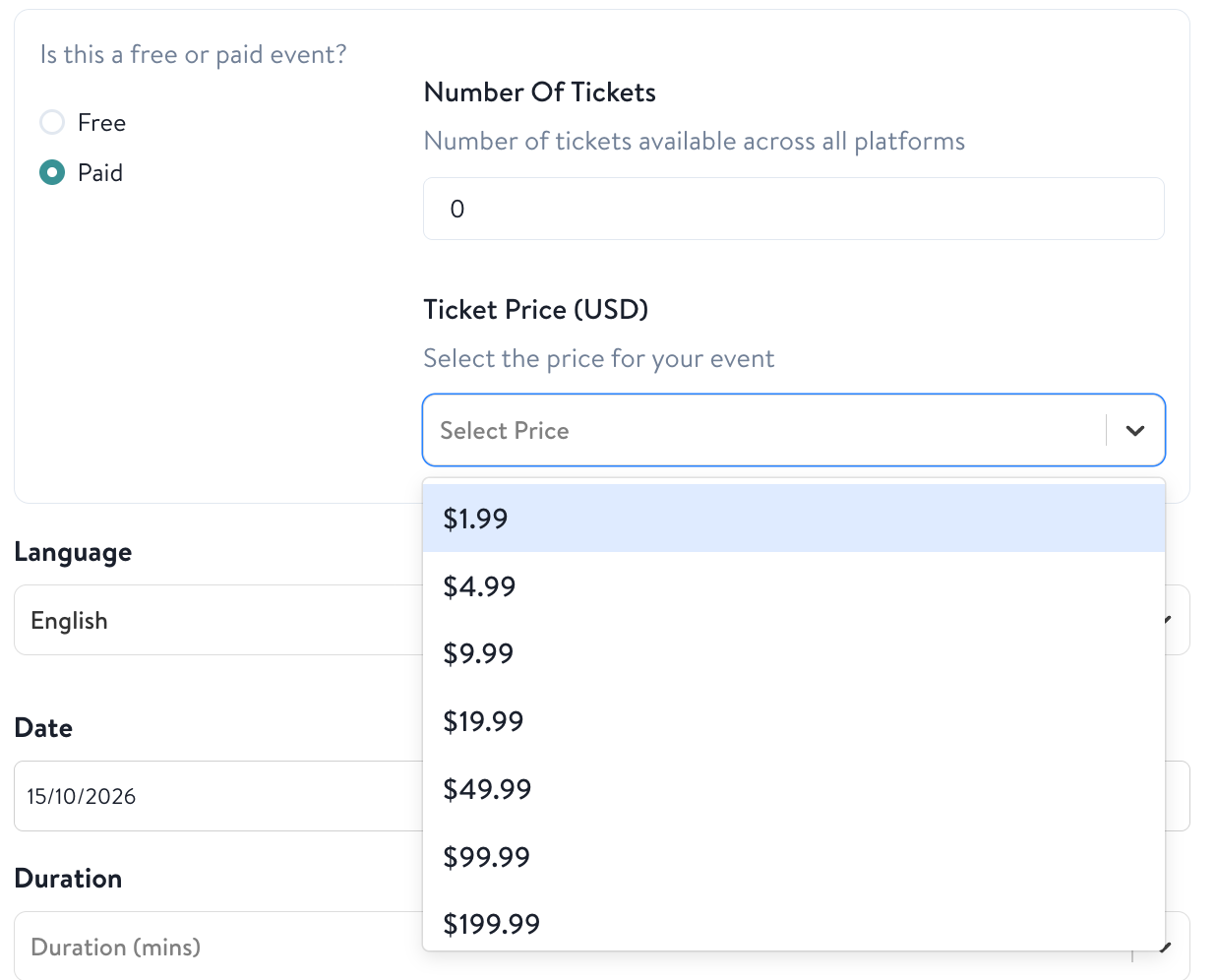
From there, you’ll finish setting up your event exactly as you would a free one.
Once you select Submit on the review page, you’ll see a confirmation that your event has been sent for review. We’ll send you an email confirmation when the event is published. That email includes a shareable link you can use to promote your event.
Can I change the price after publishing?
No. Once an event is published, you can't change its price, and you can't switch an event between free and paid. Decide before you publish.
When can members start buying tickets?
As soon as your event is published. Events still under review aren’t visible to members, so no tickets can be sold until the review is complete.
You’ll receive an email once your event has been reviewed and published. It includes a link you can share to promote your event.
Do I need a trailer?
Yes, the same as any live event. For a paid event your trailer carries more weight, because it's what convinces someone to pay. See Video Trailers for Live Events and the Best Practices guide.
Is there a minimum number of tickets I need to sell?
No. There's no minimum and no threshold your event needs to reach. How many tickets you sell is completely up to you and how you promote your event.
Can someone join after the event has started?
Yes, for the first five minutes. Tickets stay on sale and members can join during that window. Once five minutes have passed, entry closes and no more tickets are sold. Members can still buy the replay once it's published.
Setting your price
You choose from a fixed set of prices. At launch these are:
$1.99 | $4.99 | $9.99 | $19.99 | $49.99 | $99.99 | $199.99 | $249.99 | $299.99 | $499.99
Every price has to be registered with Apple and Google in advance as its own product, which is why you pick from a list rather than entering your own figure.
Prices are set in US dollars. Members in other countries pay a local price set by the app stores, so the exact amount a member sees will vary by country.
What you earn
Insight Timer currently takes 10% of the ticket price. Every ticket is an in-app purchase, so Apple or Google takes 30% as their app store commission. You keep the remaining 60%.
Member Plus subscribers get 30% off tickets, and you earn your share of the price they pay. So you'll earn less on tickets bought by Plus members.
For example, on a $10 ticket you earn $6. If a Member Plus subscriber buys it for $7, you earn $4.20.
Your earnings, broken down at every price point
What you receive from one ticket, depending on who buys it. A regular member pays your full ticket price. A Member Plus subscriber pays 30% less.
About these figures: they are estimates for illustration only. They are per ticket, in US dollars, rounded to the nearest cent, and assume the standard 30% app store fee. They are shown before sales taxes (such as VAT, GST or sales tax, which may be deducted before revenue is shared), payment processing costs, refunds, chargebacks, and any tax withheld under your payout settings. Members outside the US pay a local price set by the app stores, so your earnings from those sales will differ. App store fees are set by Apple and Google and may change. Your teacher dashboard and payout statements show what you actually earn.
Member Plus and discounts
Do Member Plus subscribers pay full price?
No. Member Plus subscribers currently receive a 30% discount on every paid live event. The discount applies automatically at checkout. See the earnings table above for how this affects what you earn.
Can I opt out of the Plus discount?
No. It applies to all paid events.
Can I offer discount codes or free tickets?
No, not at this time. There are no promo codes or complimentary tickets yet. If you want a guest or colleague in the room, they'll need to buy a ticket.
Paid event replays
Who gets access to the paid event replay?
Anyone who bought a ticket, whether or not they attended live.
Does my paid event have to become a replay?
Yes. Every paid live event is required to be published as a replay. It's part of what the member is paying for, so you can't opt in or out. Plan your session knowing it will be available afterwards.
Can people buy the paid replay if they missed the live event?
Yes. Members who didn't buy a ticket to the live session can buy access to the replay afterwards. You earn on those sales the same way you earn on tickets, and Member Plus subscribers receive the same 30% discount.
At this time, there is no cap to the number of members who can purchase a paid replay.
Can I unpublish a paid replay?
No. People have paid for access to it, so it stays available. Insight Timer may still remove content that doesn't meet our guidelines.
Can I edit the replay before it goes out?
You can edit the title and description, and upload a new trailer if you want. A new trailer goes through review before it appears. See the Live Event Replays FAQ for how replays work generally.
Cancellations, refunds and no-shows
What happens if I need to cancel a paid event?
Paid events are a commitment to the people who bought a ticket, so please only cancel if it’s truly unavoidable. Refunds for cancelled events aren’t automatic: Google Play purchases are refunded manually by our team, and members who bought through Apple need to request a refund from Apple directly. If you must cancel, please contact us as early as possible.
Repeated cancellations may affect your ability to host paid live events in the future.
What if someone buys a ticket and doesn't show up?
No-shows aren't refunded. They get access to the replay and can watch whenever suits them.
What if something goes wrong and the event doesn't happen?
If a paid event can't go ahead or is cut short because of a technical problem, please contact us as soon as possible and we'll work with you to find the best solution for you and your audience.
What if no one has purchased a ticket before my event starts?
We encourage you to go ahead with it. Tickets stay on sale until the moment you go live, and for the first five minutes after you've started, so a quiet count an hour out often isn't your final number. It can also be worth hosting even if nobody buys a ticket when it is streamed live. Every paid event becomes a replay that members can buy afterwards, so the session can still earn. A cancelled event earns nothing.
What if no one turns up, even though tickets were sold?
Please host the event as planned. Everyone who bought a ticket keeps access to the replay, and some members buy knowing they'll watch later, particularly in other time zones.
If you cancel, you won’t earn anything from the event. Ticket holders are refunded, so none of the ticket money comes to you. Refunds also cost trust: a member who pays and then gets their money back may be less likely to book another session, with you or with any teacher.
Teach to the replay rather than to the room, and run the full length you scheduled. What ticket holders receive is the session you deliver, and the replay will also be available for other members to buy afterwards, so it can keep earning.
Can I reschedule a paid event instead of cancelling it?
No. Rescheduling isn't possible at this time. Your only option is to cancel, which refunds every ticket, so please be certain of your date, time and availability before you publish.
What if a member asks Apple or Google for a refund?
Refunds for purchases made in the app are decided by Apple or Google under their own policies, and Insight Timer doesn't control those decisions. If a ticket is refunded, the earnings from that ticket may be reversed.
Tracking your ticket sales
You can see how many tickets have sold for an upcoming event in the Live Events tab of your teacher dashboard.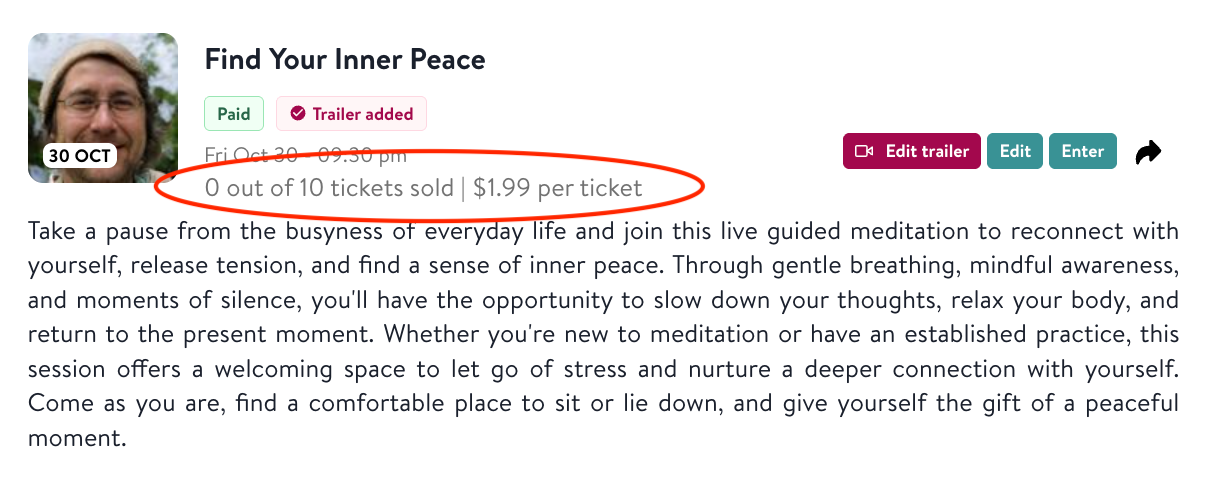
Replay sales appear alongside your other replay analytics once the replay is published.
Getting paid
How and when do I get paid?
Ticket earnings are paid through the same system and on the same schedule as your existing Insight Timer earnings. There's nothing new to set up.
What about tax?
Ticket earnings are treated the same way as your other Insight Timer earnings. See Our Payment System with Tipalti for how it works. You're responsible for your own tax obligations, so please check with a tax adviser if you're unsure.